
You know what needs to happen, but turning a few notes into a clear email can take longer than expected. AI can help with that first draft. You still supply the facts, check the wording, and decide what to send.
This guide uses AIWriterChatGPT’s Write workspace in a Chrome side panel. For advice on the email itself, see how to structure a professional email, with examples.
1. Open the extension beside your email
Install AIWriterChatGPT from the Chrome Web Store, then click its toolbar icon to open the side panel. If the icon is hidden, find it in Chrome’s Extensions menu.
The default shortcut is Cmd + J on Mac or Ctrl + J on Windows. If another extension or browser shortcut takes priority, use the toolbar icon instead. You can review shortcut assignments at chrome://extensions/shortcuts.
Sign in to your AIWriterChatGPT account. Free text generation is a limited trial shared across Chat, Fill, and Write; it is not a daily email allowance. See Free and Pro pricing for the current plan details.
2. Choose Write, Email, and the task
In the side panel, choose Email from the platform selector and open Write. Under Task, choose New email or Reply to email.
For a new message, describe the recipient, purpose, facts to include, and desired tone. For a reply, include the relevant request you are answering. You can use Reference current page when the page is supported, or paste only the relevant excerpt into your instructions.
Use only the information needed for the draft. Content supplied for AI generation is sent to the service; review the Privacy Policy before including confidential material.
3. Give AI specific notes, not missing facts to guess
A useful prompt tells AI what the recipient should understand or do. Include real dates and commitments yourself rather than asking the model to invent them.
Here is a fictional example you can adapt:
Draft a friendly professional email to Maya. We discussed a website redesign yesterday. I’m sharing the attached proposal. Ask whether she can review the project scope by Friday, November 20. Keep it under 100 words. Do not add a price or promise a start date. Sign off as Alex.
Choose Generate draft. Write prepares a subject and email body that you can edit. A possible result for those example notes is:
Subject: Website redesign proposal — scope review
Hi Maya,
Thanks for discussing the website redesign with me yesterday. I’ve attached the proposal for your review.
Could you check the project scope by Friday, November 20, and let me know if anything needs adjusting?
Best, Alex
This is an example, not a message sent by the extension. The draft mentions an attachment because the notes do; you still need to attach the actual file yourself.
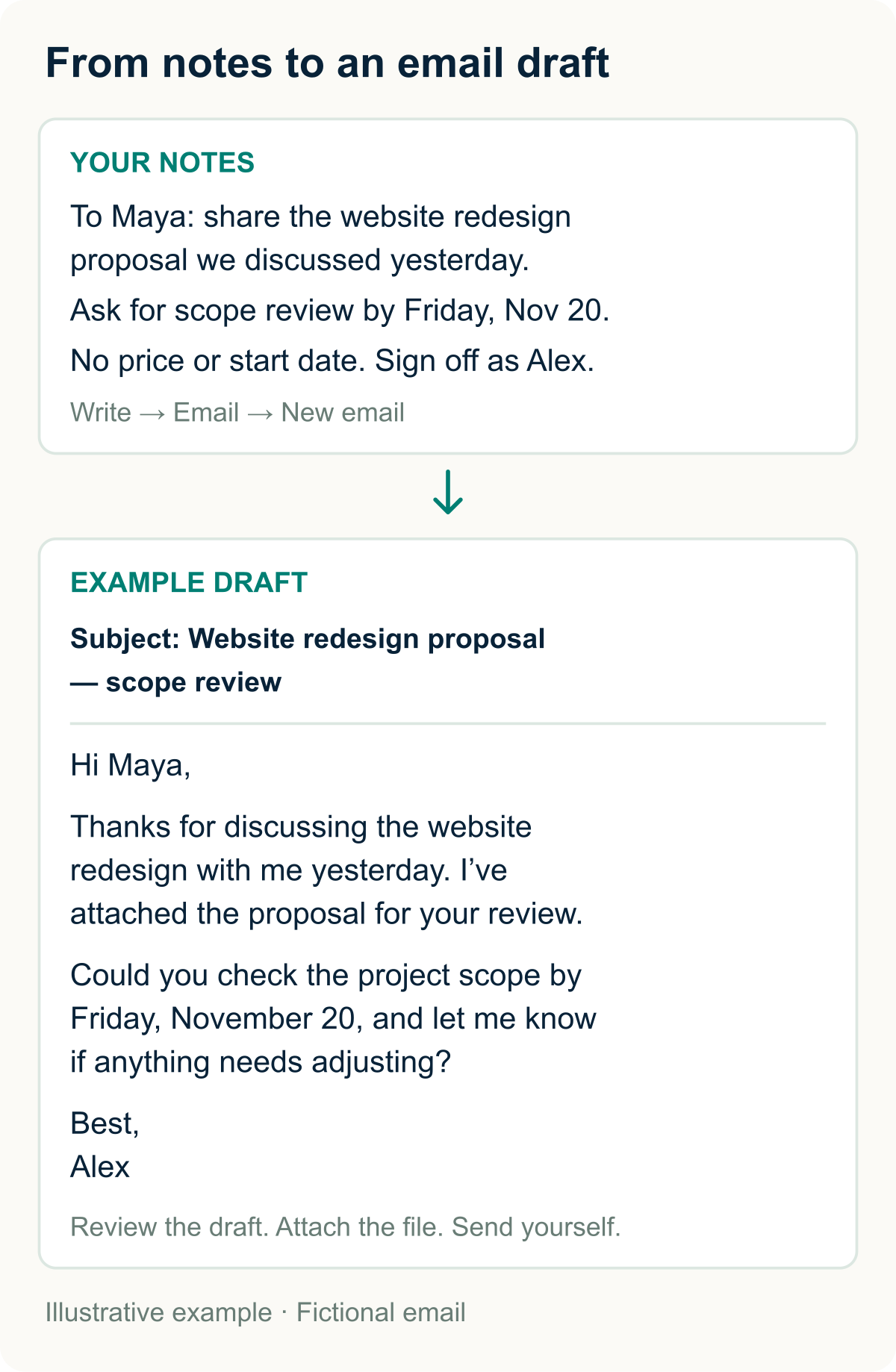
Illustration — Fictional example, not a screenshot. The draft uses only the facts in the notes above.
4. Review and refine the draft
Check the subject and body before using them. Confirm names, dates, links, and anything that sounds like a commitment. Remove claims that were not in your notes.
Use Shorter if the draft repeats itself, or More natural if the wording feels stiff. You can also edit the text directly. Refinement should make the message clearer without changing your meaning.
For a reply, make sure the draft answers the original question and does not simply repeat the sender’s message.
5. Copy or insert, then send yourself
Use Copy, or Use current page as target and Insert into page when the destination is supported. If insertion is unavailable, paste the draft manually into your email composer.
Review the final message in your email app: recipient, CC, subject, attachment, and body. AIWriterChatGPT does not send the email for you. You decide when to press Send.
You can save a draft in the local Library to return to it in the same browser. Saved drafts do not sync across devices.
A short checklist for better AI email drafts
- Give the recipient and the purpose of the email.
- Supply the facts AI should use, including any genuine deadline.
- Specify a tone and approximate length when they matter.
- Read the result as the recipient would: is the next step clear?
- Check attachments and send from your email app yourself.
Explore Chat, Fill, and Write for other tasks, or continue with professional email structure and examples.